
As learned in the Onboarding Guide, Plant and Offer trees is our manual solution. We also have automated services.
Planting trees on Tree-Nation can be done in two ways: you can plant trees for yourself, or you can offer trees to other people as a Tree-Gift.
Use this guide to choose the option that matches your planting action.
You will find the following topics in this article
- How to plant and offset without tree gift
- How to plant a tree gift
- Advanced Tree Gift Features for Companies
- How to plant a tree gift without the recipient´s email address
- How does the tree-gift appear in your forest?
Before you start
Log in to your Tree-Nation account and go to the Plant & Offset section. From there, select the project and tree species you would like to plant.
Tip: Browse and find your favorite project quicker via the Project List and click plant.
Option 1: Plant trees for yourself
-
Step 1: Select your project and species - Choose the planting project and tree species you would like to support.
-
Step 2: Choose “No, I’m planting for myself” - This means the trees will be planted in your own forest and will not be sent to recipients.
-
Step 3: Select the number of trees to plant - Enter the number of trees you would like to plant.
-
Step 4: Add a Planting Habit and personalize your tree - Toggle the Planting Habit option to On. Select the Planting Habit that best matches your planting action or offsetting purpose. The selected habit will be used as the hashtag connected to your planting action.
- An image or video, to brand and personalize your planting
- An explanation of why you're planting trees, based on your estimated carbon footprint.
We highly recommend personalizing your tree by adding, this will increase your visibility on our platform:
-
Step 5: Complete your planting action - Click “Plant your trees” and complete the checkout to finish your planting action.
Offer trees as a Tree-Gift through Tree-Nation’s email system
Choose this option if you want Tree-Nation to send the Tree-Gift directly to your recipients by email.
-
Step 1: Select your project and species - Choose the planting project and tree species you would like to support.
-
Step 2: Choose “Yes, I want to offer these trees” - This will open the recipient details section.
-
Step 3: Add your recipients - You can add recipients in two ways.
-
Option 1: Add recipients one by one - Use this option if you only have a few recipients. Fill in the recipient details directly in the available fields.
-
Option 2: Offer to a large group - Use this option if you have a larger list of recipients. Click “Offer to a large group” and upload your recipient list. The file should include:
-
the recipients’ email addresses in the first column,
-
the recipients’ full names in the second column.
-
-
-
Step 4: Indicate the number of trees per recipient - Enter how many trees each recipient should receive. For example, if you select 3 trees per recipient and add 10 recipients, each recipient will receive 3 trees.
-
Step 5: Add a Planting Habit and personalize your Tree-Gift - Toggle the Planting Habit option to On. Select the Planting Habit that best matches your campaign, gift, or offsetting action. The selected habit will be used as the hashtag connected to the Tree-Gift.
You can also personalize the Tree-Gift by adding:
- an image or video, for your company or personal branding.
- and an explanation of why you are offering the trees.
This helps recipients understand the purpose of the Tree-Gift.
-
Step 6: Complete and send your Tree-Gift - Click “Plant your trees” and complete the checkout. During checkout, you can also:
-
Select the language of the Tree-Gift email
-
Schedule the date when the Tree-Gift should be sent.
-
Once the checkout is completed, Tree-Nation will send the Tree-Gift to your recipients by email.
Important notes:
-
In the checkout section, the plant these trees ´Every month´ is selected by default. If you wish to have it only ´One Time´ ensure you select that option.
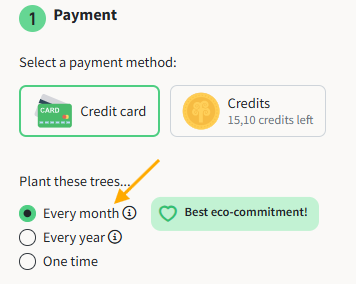
- Minimum spend for manual planting using card payment is €4. Hence, if you would like to perform smaller orders we recommend allocating credits to your account, which allows you to plant without a minimum spending per planting. Read more here.
How to plant a tree:
How to Offer a Tree:
How to gift trees with an advanced option. (Please watch the video above first)
This solution is practical for large companies who prefer to send the trees from their own mailing system.
Instead of sending Tree-Gifts through the Tree-Nation mailing system, you can access an Excel list with all of the URLs associated with each of your Tree-Gifts that you can deliver to your recipients yourself through the medium of your choice.
- To access the URLs first click on ‘Offer to a large group’.
- Then on ‘advanced options’ under ‘Recipients information’.
- Click the ‘Send the trees myself’ button on the following prompt.
- Input the number of recipients you would like to send the trees to.
- Click on ‘Plant your trees’ and then ‘Pay & Plant’ in the checkout to complete your purchase.
- Visit your ‘History of Contributions’ and find the contribution related to the Tree-Gift under discussion.
- Click on the download button from the ‘Tree URL’ column to download an Excel with all of the associated Tree-Gift URLs.
- Copy the URLs and send them to your recipients via your desired method.
Don't have the recipient's email address?
If you don't have the email address of your recipient, you have two options. You can use the Advanced Option to send the tree gift URLs yourself. Alternatively, you can offer trees using only the recipient's name:
- In step 2 of the planting flow, select "Yes, I would like to offer the trees."
- Below the Recipient field, click "See other sending options."
- Select "I don't know their email" and enter the recipient's full name.
- To add more recipients, click "Add another recipient" and repeat.
- Continue with the remaining planting steps to complete your order.
How does the tree-gift appear in your forest?
To comply with GDPR, Tree-Gifts will not display the recipient’s full last name unless the gift is offered to an existing Tree-Nation member. For recipients who are not yet members, their full first name and only the initial of their last name will be shown. Once the recipient collects the tree by creating a Tree-Nation account, their full name will be displayed. The same applies for the tree certificate.
-
Tree-Gift as it appears in the corporate forest and in the recipient’s forest when the recipient registers on Tree-Nation.
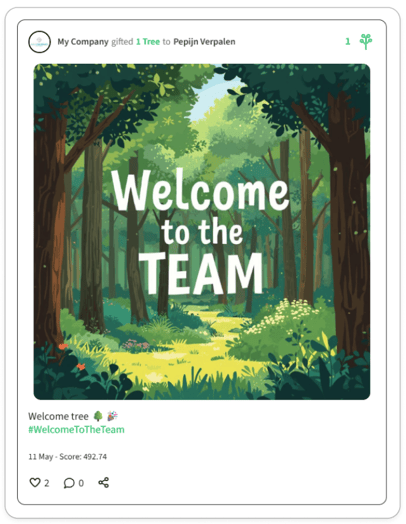
- Tree-Gift as it appears when the tree hasn´t been collected yet.
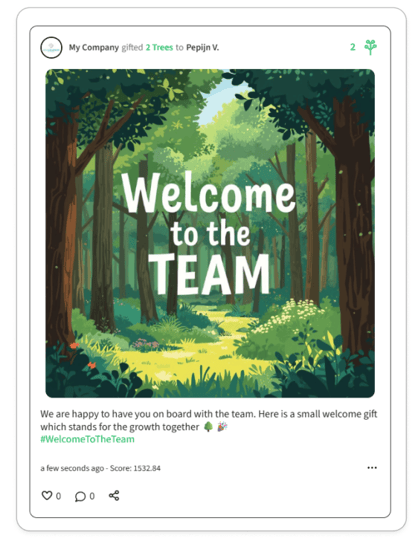
What it's like to receive a tree
Discover what the experience of your recipients will be when they receive their trees by watching the video below.