
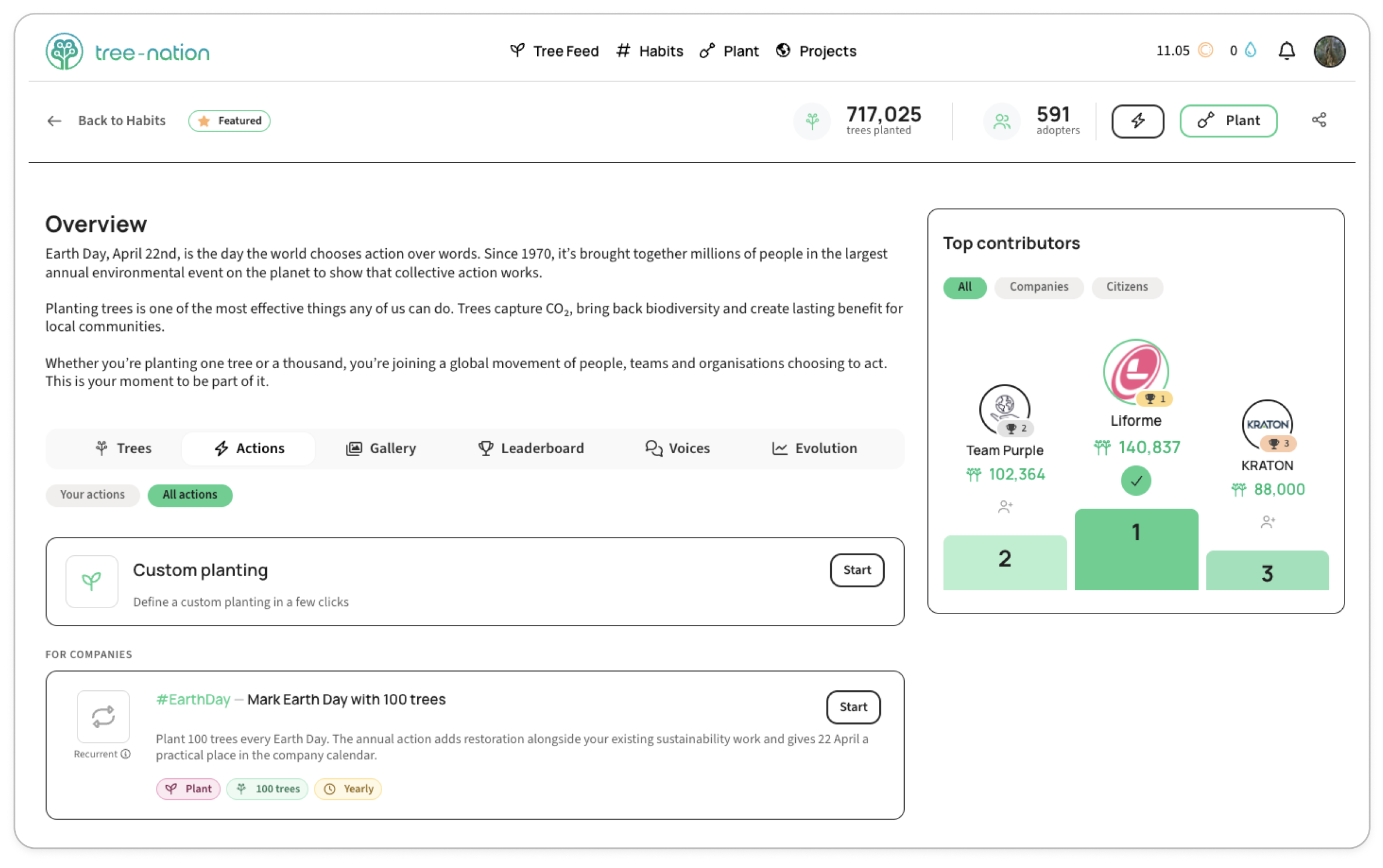
Every Habit has an Actions tab — a set of ways to plant under that Habit. You can either activate one that's already built for you, or build your own from scratch. Here's both, using #EarthDay as the example.
Open any Habit page (e.g. tree-nation.com/habit/EarthDay) and click Actions.
Option 1: Start a pre-configured action (fastest)
Under the Actions tab, you'll see a list of ready-made actions for that Habit — for #EarthDay, that includes things like "Mark Earth Day with 100 trees" or "Celebrate your team with a growing Earth Day gift."
- Find one that fits and click Start.
- You land straight on a review screen — the project, species, quantity, message, and timing are all already filled in for you.
- Want to tweak something? Click Modify on any section. Otherwise, just click Activate.
That's it — no setup required. This is the quickest way to get a planting action running.
Option 2: Build a custom planting
If none of the ready-made actions fit what you want, build your own.
- At the top of the Actions tab, click Start on Custom planting.
- Give it a title, and choose how it's triggered:
- Recurrent — automatically plants trees at regular intervals you set.
- Calendar — plants on a specific date each year, with a yearly reminder to confirm.
- Choose whether you plant or gift the trees.
- Pick your project and species — or a species package. A species package is recommended, especially for a recurring or yearly action: it's managed on our end, so your planting keeps running smoothly even if conditions for one specific species change and it will bring variety to your planting action so better for environmental impact. Picking one exact species instead means that planting depends on that species specifically staying available - read more here about Species Replacement System.
- Set how many trees to plant.
- Add your message and, optionally, a picture or video.
- Set the timing:
- Recurrent — choose how often (Daily, Monthly, or Yearly) and when it starts.
- Calendar — choose a fixed date (e.g. March 8, April 22). This isn't a one-time planting: it plants on that date every year, and you get a yearly reminder to confirm before it runs. Anyone on the recipient list at that point is included — so if you add new employees or contacts during the year, they're automatically covered by the next annual run.
- Review everything on the Activation screen. Click Activate to start it right away, or Save draft if you want to think it over — drafts show up on your My Actions page too, so nothing gets lost.
This gives you full control over every detail — useful when you want a different project, quantity, or audience than any of the templates offer.
What happens each year with a Calendar action
Some yearly actions ask you to confirm before they run — you'll get a notification, both in your Tree-Nation notifications and by email, inviting you to review and confirm that year's planting (recipients, quantity, etc.) ahead of the date. If you don't confirm in time, that year is skipped, but the action itself stays active and will ask you again next year. Other Calendar actions are fully automatic and just run on the date, no confirmation needed, as long as your account has credits or a valid payment method.
Either way: once the trees are planted, you get a notification confirming it went through, and if it's a gift, your recipients get an email at the same time with a link to view their tree. They don't need to do anything for the tree to be planted — collecting the gift is optional, just for them to see it in their own forest. You can always see the last planting date and quantity for any action on your My Actions page.
Which should I choose?
If a ready-made action already matches what you're after, use it — it's faster, and nothing is left for you to configure. Build a custom planting only when you need something the templates don't cover.
After you activate
Whichever way you start it, your action shows up on your My Actions page. That's where you go to check on it, edit it, or pause and resume it — see My Actions: manage your recurring and scheduled tree plantings.